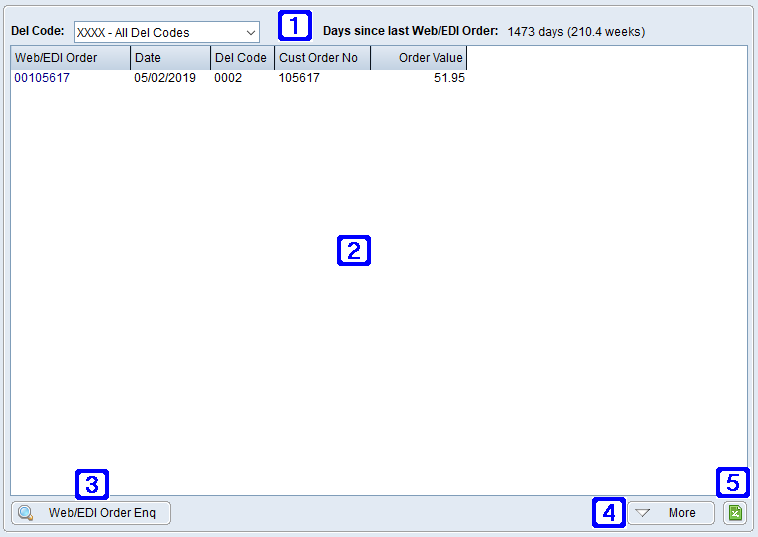
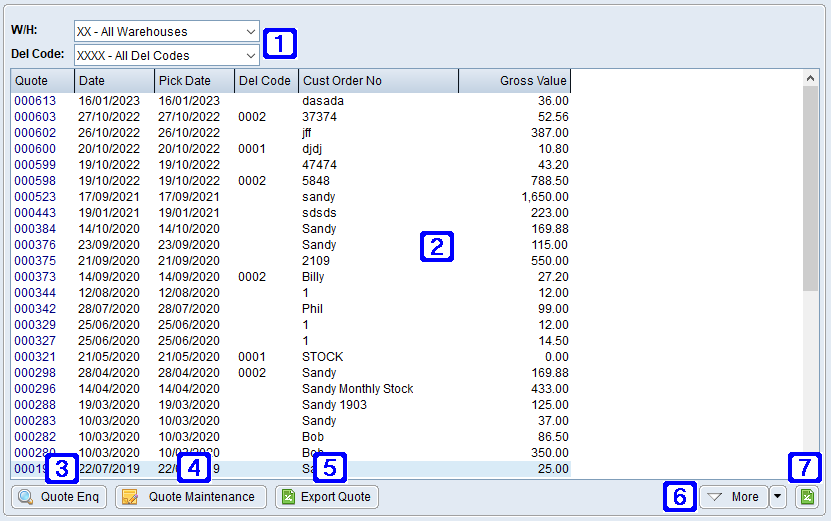
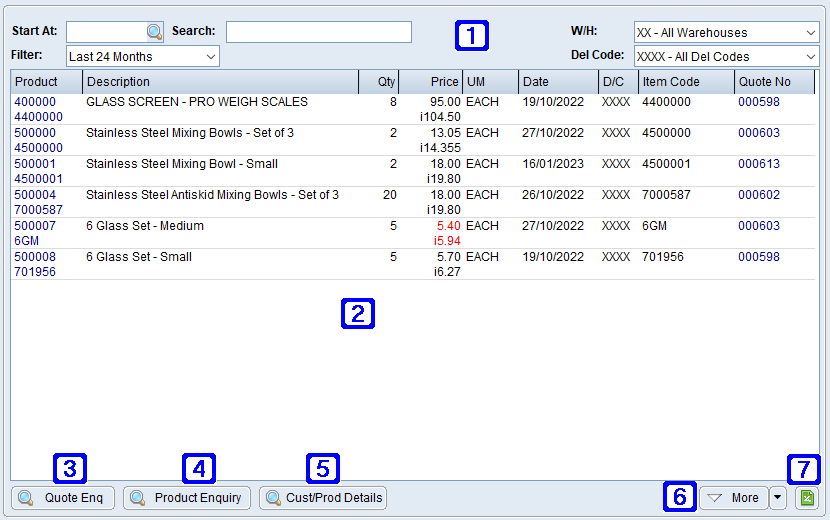
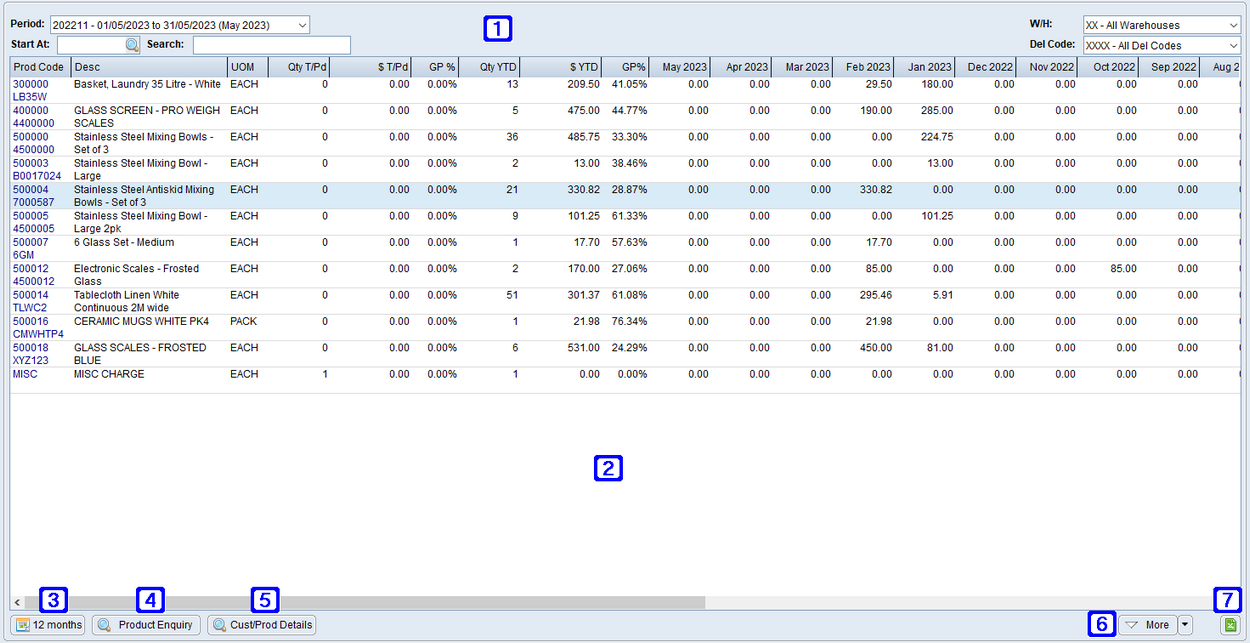
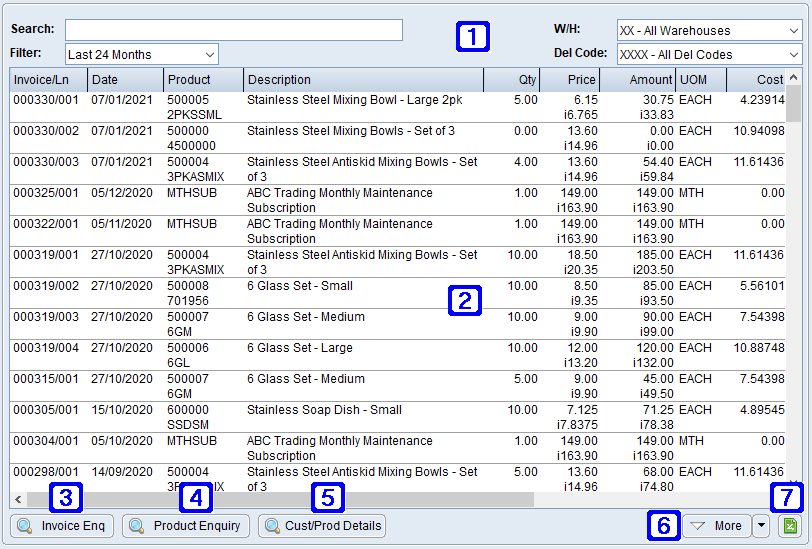
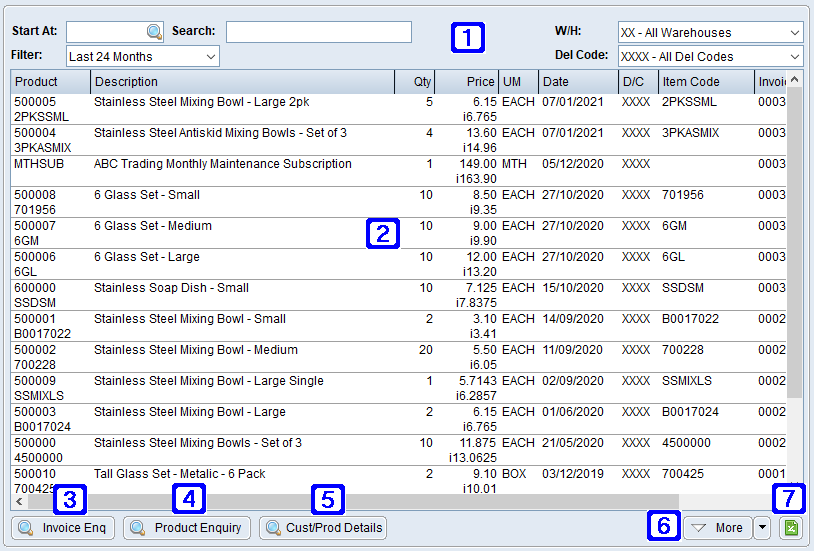
The Last Price Paid tab displays a list of products using the selected parameters and the price that was invoiced last time they were purchased, listing most recent purchased at the top.
Last Price Paid Tab Screen
Start At - Users can enter a value here to start the search. Only records from this start at value will be displayed.
Search - Users can enter a keyword or multiple keywords to search the data in the list box.
Filter - Users can choose to filter the invoice line history data for the selected product from the last 12 Months, 24 Months or All data.
W/H - Clicking the drop down arrow will allow users to select a different warehouse.
Del Code - Clicking the drop down arrow will allow users to select a different delivery code.
Displays a list of products sold based on the selected filter.
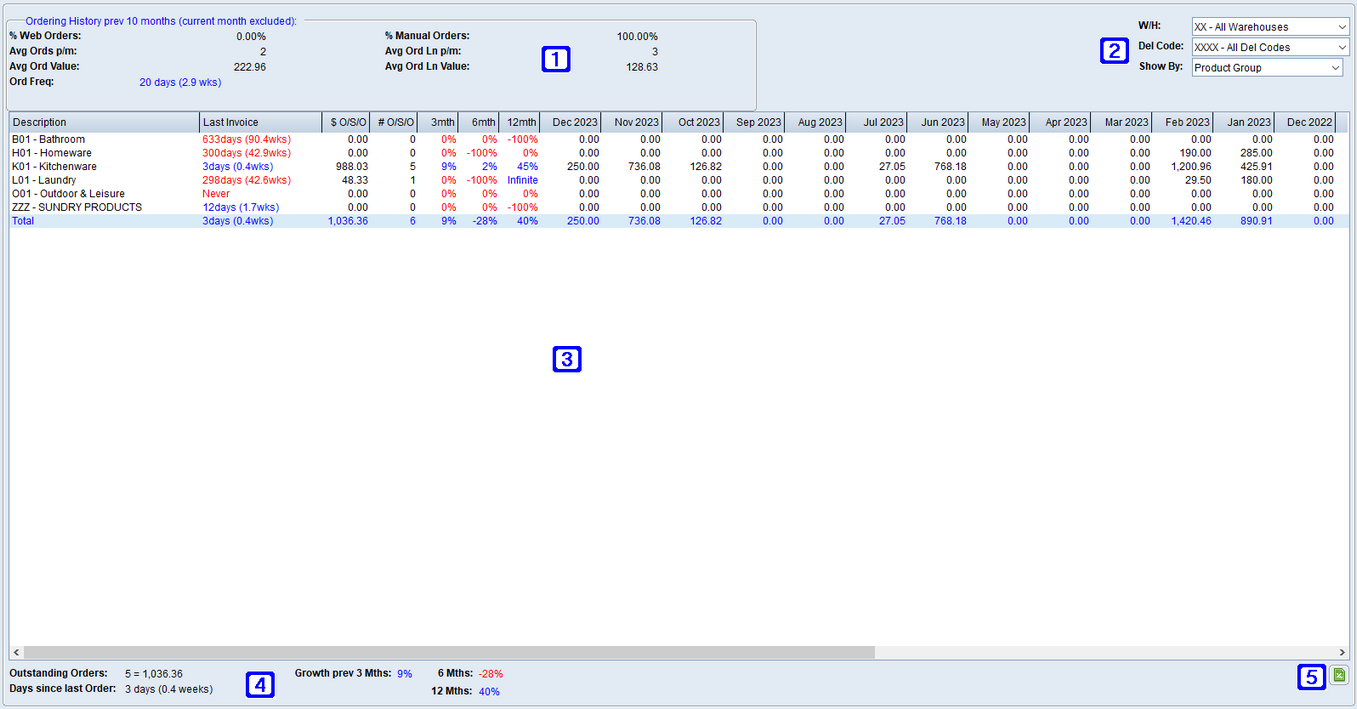
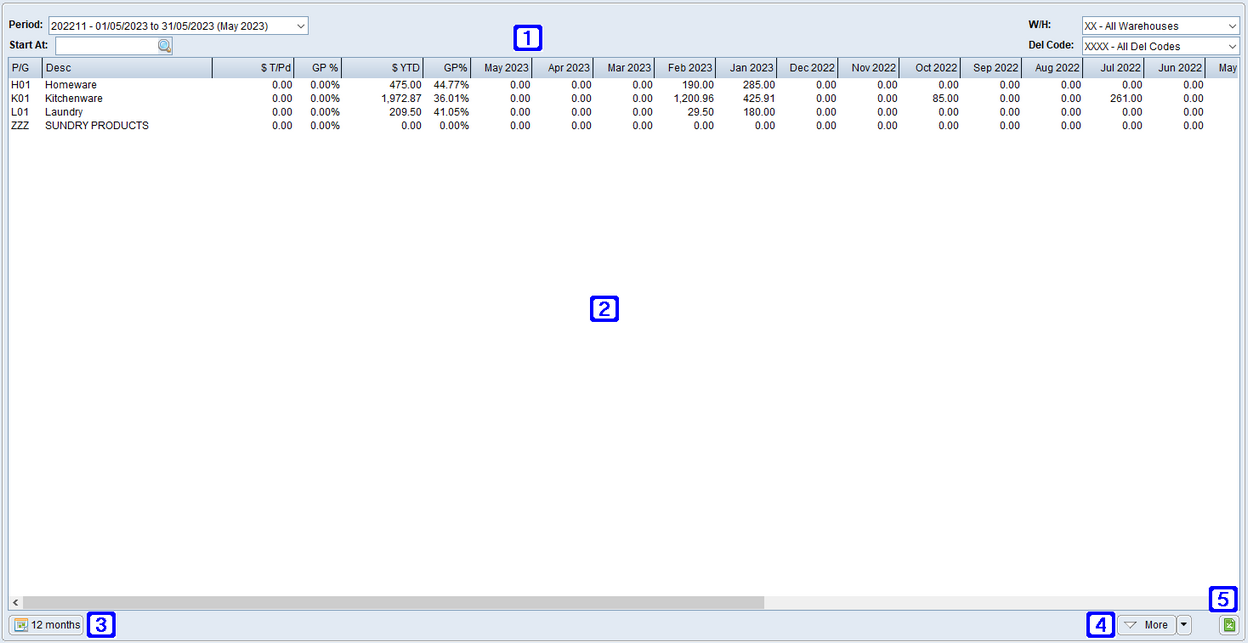
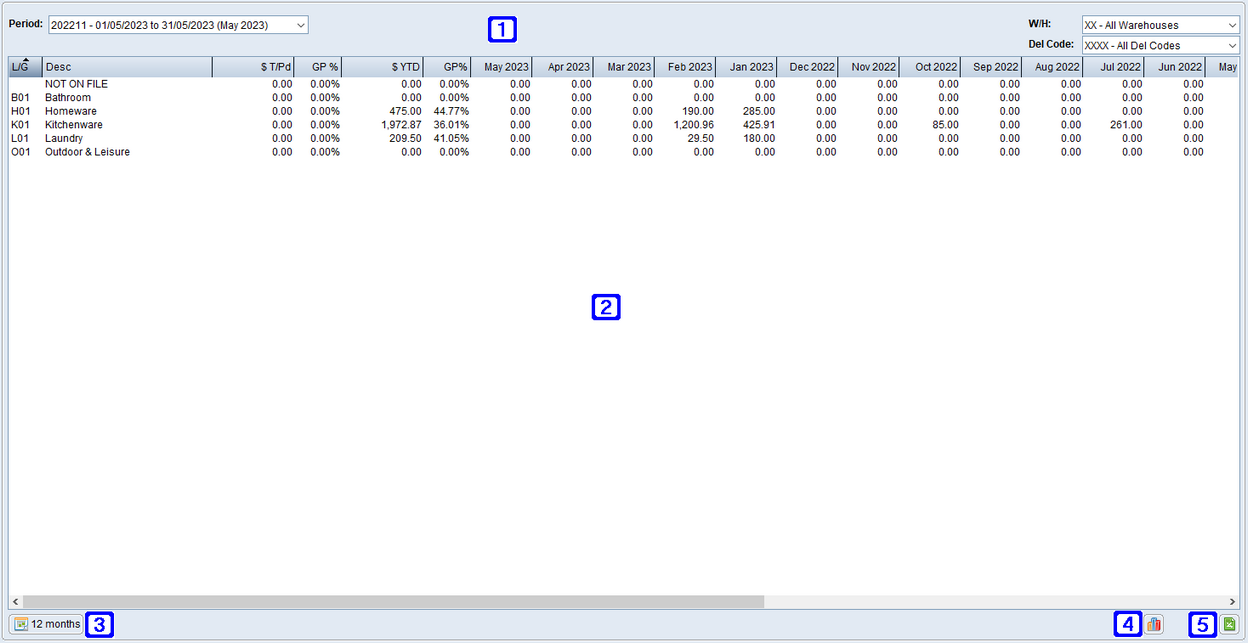
The Buying Patterns & Analysis tab displays a summary and analysis of buying patterns for each product group or loyalty statement group using the selected parameters.
Buying Patterns & Analysis Tab Screen
Ordering History prev 12 Months (current month excluded):
% Web Orders - Displays what percentage of orders over the previous 12 months excluding the current month were web orders.
% Manual Orders - Displays what percentage of orders over the previous 12 months excluding the current month were manual orders.
Avg Ords p/m - Displays the average number of orders per month.
Avg Ord Ln p/m - Displays the average number of order lines per month.
Avg Ord Value - Displays the average order value.
Avg Ord Ln Value - Displays the average order line value.
Ord Freq - Displays the order frequency.
W/H - Clicking the drop down arrow will allow users to select a different warehouse.
Del Code - Clicking the drop down arrow will allow users to select a different delivery code.
Show By: Clicking the drop down arrow will allow users to select a different Show By category.
•Product Group - Displays buying patterns and analysis by Product Group.
•LP Statement Group - Displays buying patterns and analysis by Loyalty Points Statement Group.
Displays a list of groups based on the selected filter.
Outstanding Orders - Displays the number and value of outstanding sales orders.
Growth prev 3 Mths - Displays the percentage of growth in sales over the previous 3 months, compared to the 3 months prior, for the selected customer.
6 Mths - Displays the percentage of growth in sales over the previous 6 months, compared to the 6 months prior, for the selected customer.
12 Mths - Displays the percentage of growth in sales over the previous 12 months, compared to the 12 months prior, for the selected customer.
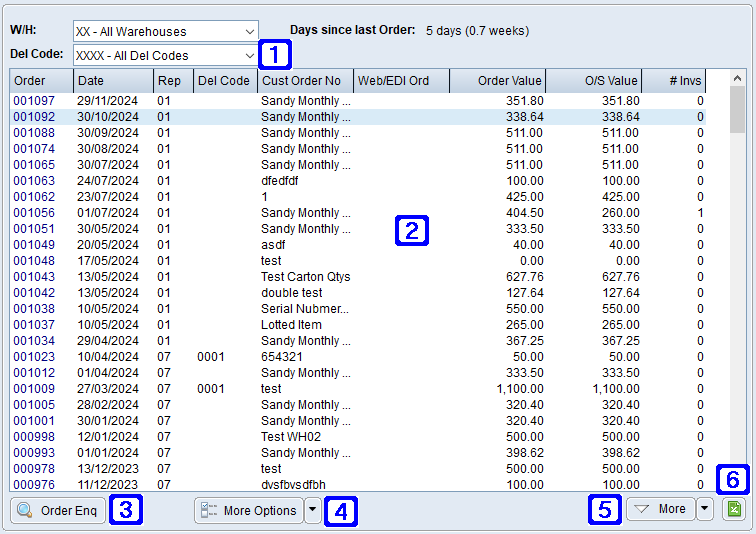
Days since last Order - Displays the number of days since the selected customer last ordered.
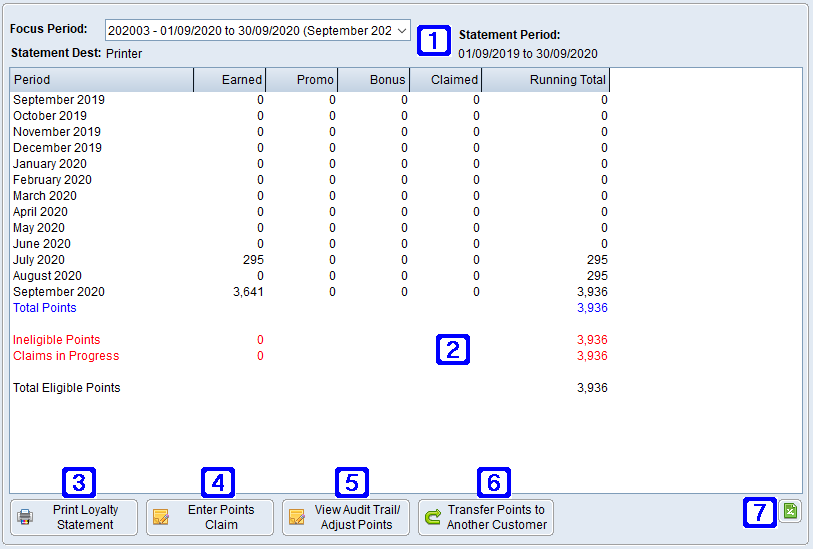
The Loyalty Points (X Rolling Pds) tab displays a summary of points received and claimed for the number of loyalty periods defined in the company settings up to the selected period.
Loyalty Points (13 Rolling Points) Tab Screen
Focus Period - Clicking the drop down arrow will allow users to select a different focus period.
Statement Period - Displays the statement period.
Statement Dest - Displays the statement destination (i.e. Printer, email address).
Displays a summary of points earned/claimed per month for the selected focus period.
•Ineligible Points are points earned on invoices the customer is yet to pay in full.
•Claims in Progress are for points that have been claimed on a sales order that is yet to be invoiced.
Print Loyalty Statement – Allows users to print the Loyalty Statement for the selected customer.
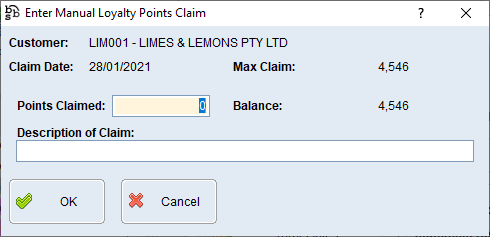
Enter Points Claim – Allows users to enter a manual loyalty points claim.
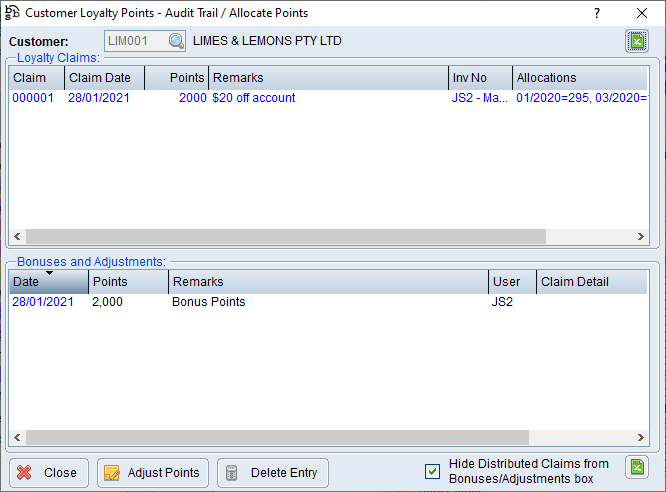
View Audit Trail/Adjust Points – Allows users to view loyalty point claims or adjustments for the selected customer.
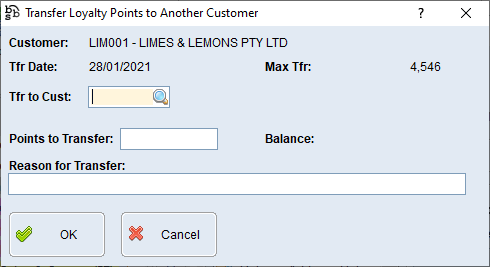
Transfer Points to Another Customer - Allows users to transfer loyalty points from the selected customer to another customer.
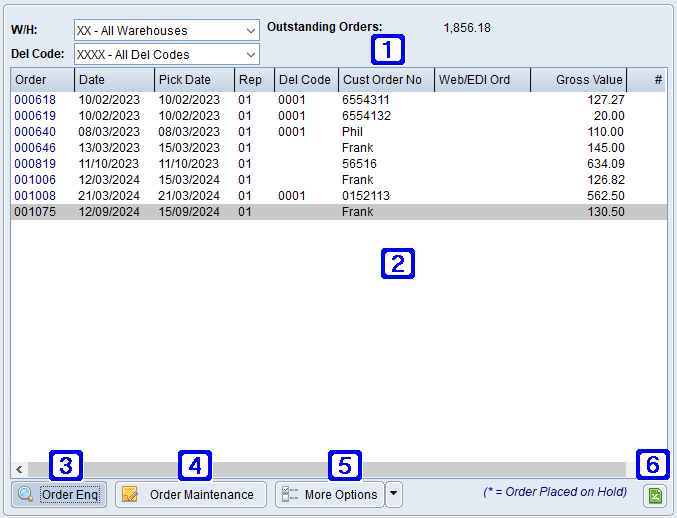
The Outstanding Sales Orders tab displays a list of outstanding sales orders using the selected parameters, listing the oldest outstanding sales order at the top.
Outstanding Sales Order Tab Screen
W/H - Clicking the drop down arrow will allow users to select a different warehouse.
Del Code - Clicking the drop down arrow will allow users to select a different delivery code.
Outstanding Orders - Displays the total value in outstanding sales orders.
Displays a list of Outstanding Sales Orders for the selected customer.
•Print Orders - Allows users to print/view selected orders in various formats, including: (Sales Order (Internal Copy), Order Confirmation, Proforma Invoice, Delivery Note, Delivery Note (POD), Quotation, Work Order, Picking List (Ad Hoc), Package Label).
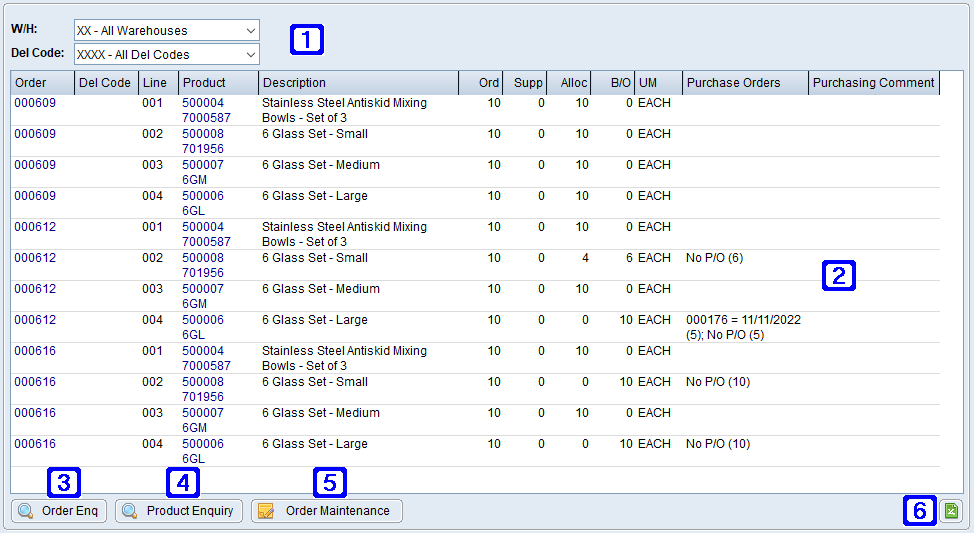
The Outstanding Products on Order tab displays a list of products on outstanding sales orders using the selected parameters, listing the oldest outstanding sales order at the top.
Outstanding Products on Order Tab Screen
W/H - Clicking the drop down arrow will allow users to select a different warehouse.
Del Code - Clicking the drop down arrow will allow users to select a different delivery code.
Displays a list of Outstanding Products on Order for the selected customer.
•Print Orders - Allows users to print/view selected orders in various formats, including: (Sales Order (Internal Copy), Order Confirmation, Proforma Invoice, Delivery Note, Delivery Note (POD), Quotation, Work Order, Picking List (Ad Hoc), Package Label).
More - Allows users to display more results if applicable.
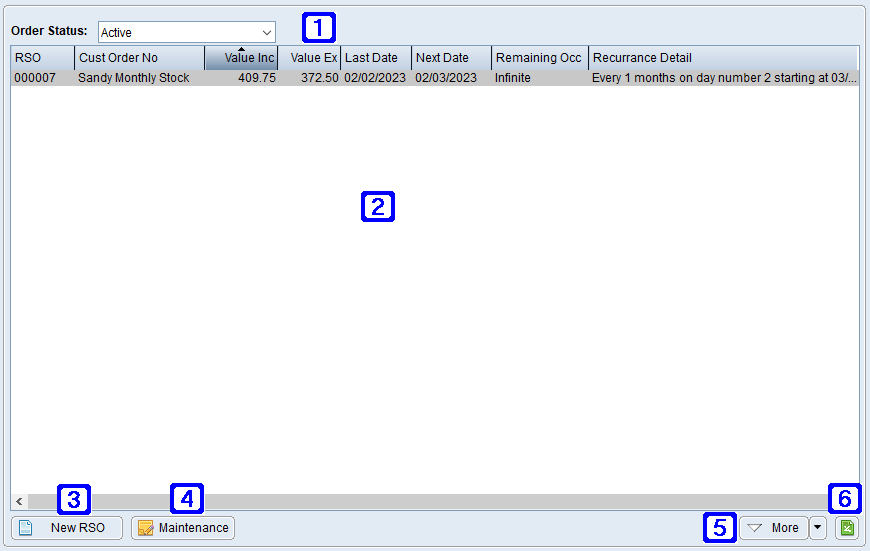
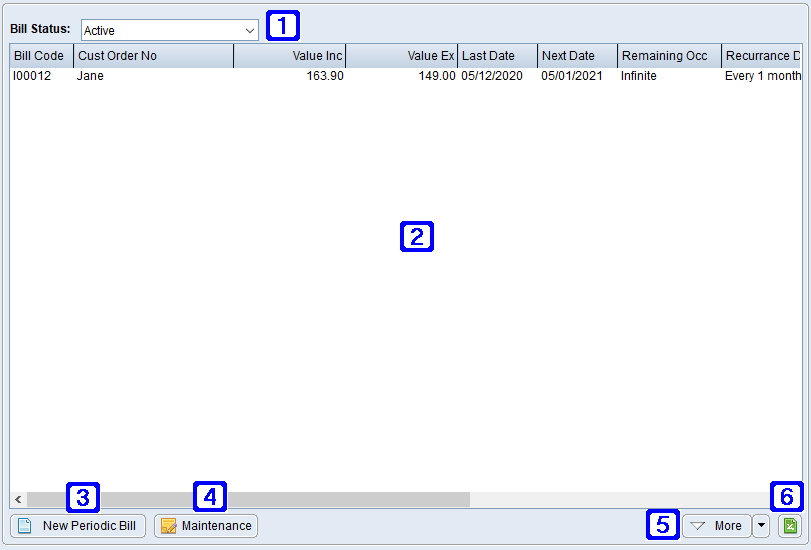
The Reoccurring Sales Order tab displays reoccurring sales orders using the selected parameter.
Reoccurring Sales Order Tab Screen
Order Status – Users can choose to filter the reoccurring sales order status for the selected customer from Active, Inactive or All reoccurring sales orders.
Displays a list of Reoccurring Sales Orders for the selected customer.
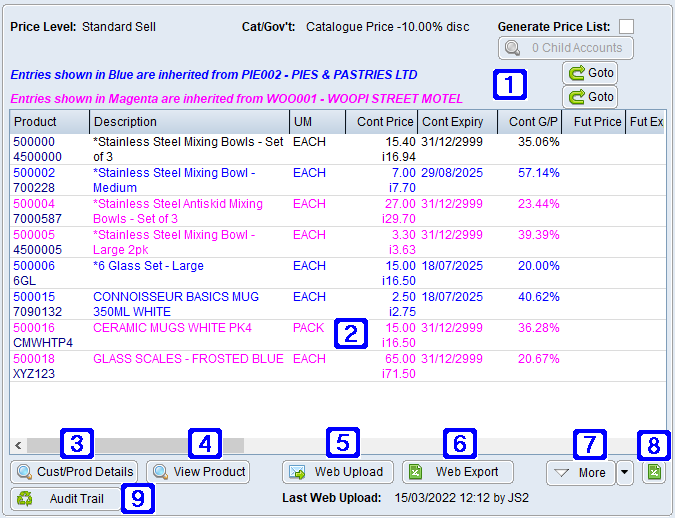
The Customer/Contract Pricing tab displays a list of products on contract pricing using the selected parameters.
Customer/Contract Pricing Tab Screen
Price Level - Displays the customer price level if applicable.
List/Edu - Displays if the customer receives the List Price or the Education Price pricing if applicable.
Generate Price List - If ticked, the selected customers contract prices will be included on the Customer Price List Report when run with a blank customer code.
Where another customer inherits their contract pricing from the selected customer the Child Account button will be active, clicking this button displays the customer code and name.
Where the selected customer inherits their contract pricing from another customer the following will display "Entries shown in Blue are inherited from Customer Code - Customer Name".
Clicking the Goto button will navigate users to the Customer/Contract Pricing Tab for the Customer pricing is inherited from.
Where the selected customer inherits their contract pricing from a statement account the following will display "Entries shown in Magenta are inherited from Customer Code - Customer Name".
Clicking the Goto button will navigate users to the Dynamic Contract Pricing Tab tab for the statement account pricing is inherited from.
Displays a list of products on contract pricing for the selected customer.
The Dynamic Contract Pricing tab displays a list of products and/or product groups on dynamic contract pricing.
Dynamic Contract Pricing Tab Screen
Where the selected customer inherits their contract pricing from another customer the following will display "Entries shown in Blue are inherited from Customer Code - Customer Name".
Clicking the Goto button will navigate users to the Customer/Contract Pricing Tab of the Customer pricing is inherited from.
Where the selected customer inherits their contract pricing from a statement account the following will display "Entries shown in Magenta are inherited from Customer Code - Customer Name".
Clicking the Goto button will navigate users to the Dynamic Contract Pricing Tab of the statement account pricing is inherited from.
Displays a list of products/product groups that have dynamic contract pricing for the selected customer.
Cust/Prod Details – Navigates users to Customer/Product Information for the selected line. (This option is not available if the selected line is for a product group and not an individual product code).
View Product – Navigates users to Global Inventory Enquiry for the selected line. (This option is not available if the selected line is for a product group and not an individual product code).
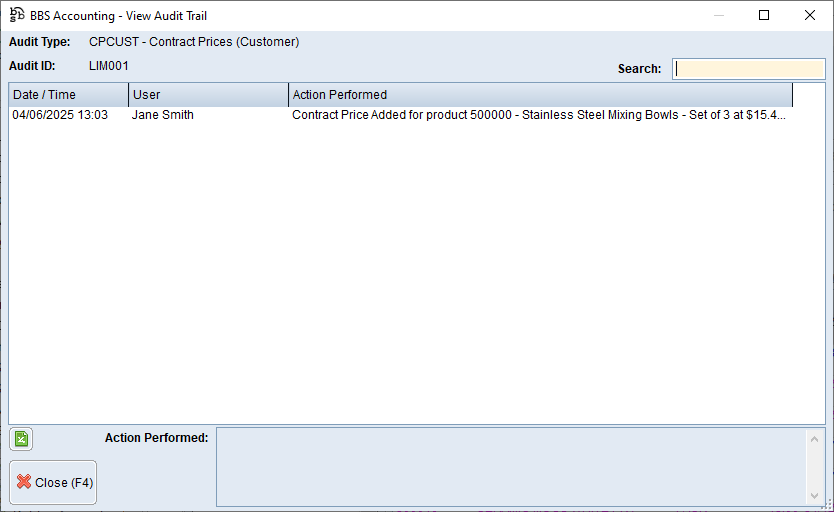
Audit Trail - Allows users to view the Audit Trail for the selected dynamic contract price.
Hide Expired Entries – When ticked dynamic contract pricing that has expired will not display. To view expired dynamic contract pricing users can untick the box.
Exports the list of Dynamic Contract Pricing to Excel.





 Buying Patterns & Analysis Tab