|
Main Menu > Inventory Control > Stock Transfers |

The Stock Transfers program allows users with access to transfer stock from a selected warehouse to another warehouse (Not available in BBSCloud Lite) or from a selected product code to another product code. To create Stock Transfers please refer to Product to Product Transfers for more information.
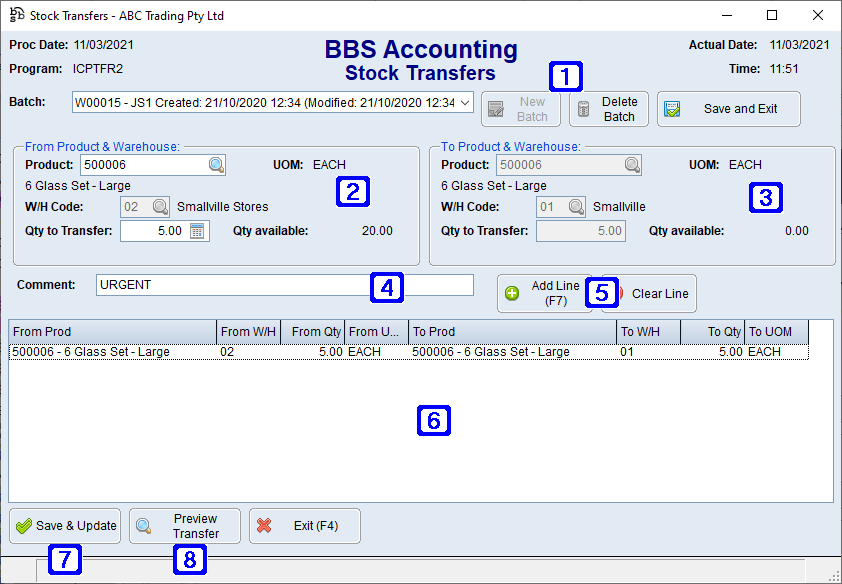
Stock Transfers Screen
|
New Batch - Allows users to create a new batch of stock transfers. Delete Batch - Allows users to delete an existing batch (Existing batches can be accessed by clicking the drop down arrow in the Batch field) Save and Exit - Saves the batch and exits out of the screen allowing users to edit the batch at a later date |
|
From Product & Warehouse: The details of the product being transferred. Product - The product code being transferred to another warehouse or product code. UOM - The stock unit of measure for the selected product code. W/H Code - The warehouse code the selected product is located in. Qty to Transfer - The quantity of the selected product code being transferred to another warehouse or product code. Qty Available - The quantity available for transfer of the selected product code to another warehouse or product code. |
|
To Product & Warehouse: The details of the product being transferred to. Product - The product code being transferred to. If performing a warehouse to warehouse transfer, this field automatically fills in with the details of the From Product. UOM - The stock unit of measure for the selected product code. W/H Code - The warehouse code the selected product will be located in. If performing a product to product transfer, this field automatically fills in with the details of the From Warehouse. Qty to Transfer - The quantity of the selected product code being transferred. Qty Available - The quantity available of the selected product code in the from warehouse. |
|
Comment - Users can enter a comment about the transfer if they wish. |
|
Add Line (F7) - Adds the product to the stock transfer Clear Line - Clears the current line and removes the product from the stock transfer |
|
A list of the products that have been added to the transfer will display in this screen, each product will be shown on a separate line. |
|
Save & Update - Saves and updates, completing the stock transfer. |
|
Preview Transfer - Allows users to print or view to screen the transfer prior to updating. |


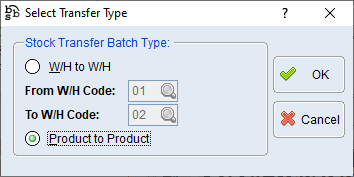
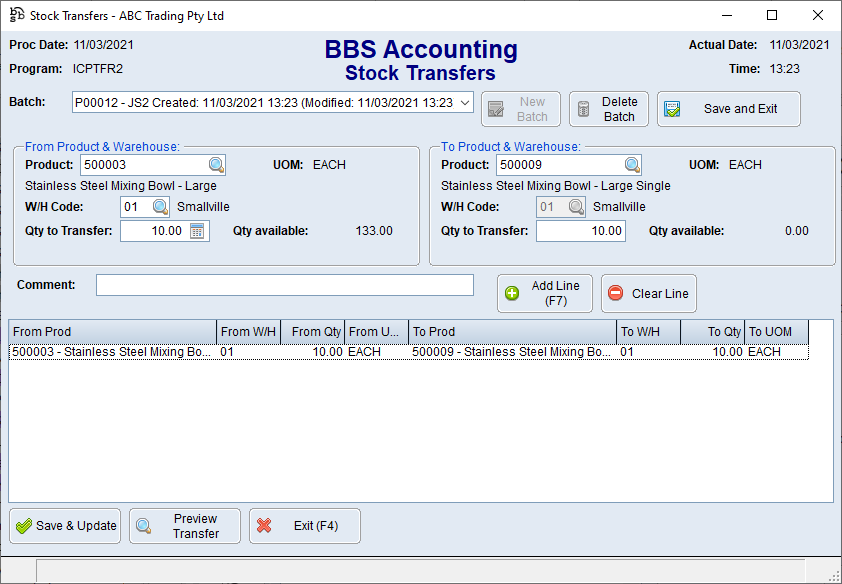
 to search.